
How to Create a PDF in InDesign for output on ChromaLuxe
When creating a PDF for output on ChromaLuxe, it is important to use the correct export-to-PDF settings, so you are able to print all possible colors in your RIP software and printer.
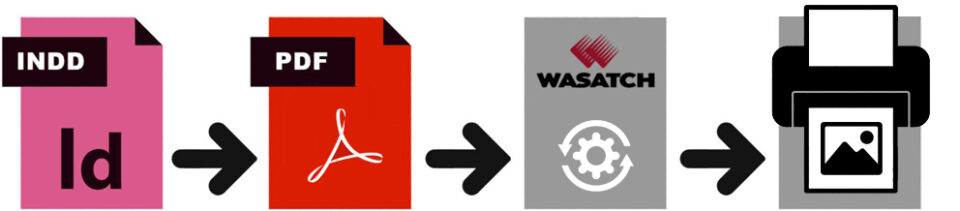
Wrong color settings in InDesign, or wrong export parameters when creating your PDF can give bad output on the final ChromaLuxe panel. That's why we created custom build color settings, that you can import in your Adobe application.
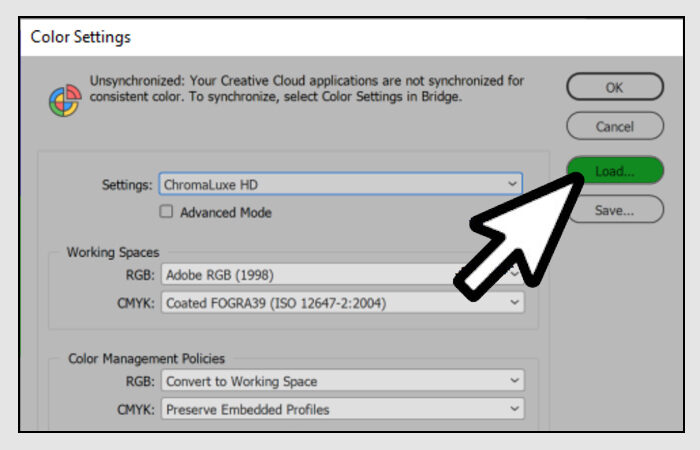
STEP 1 - CHANGE THE COLOR SETTINGS IN YOUR INDESIGN APPLICATION:
- Download our ChromaLuxe Color Settings for InDesign and unzip the content on the desktop of your PC
- Open your InDesign application
- Go to > EDIT > COLOR SETTINGS
- Click now on the LOAD BUTTON
- Import the "CHROMALUXE HD.csf" file that is located on your desktop
- Select now the new color settings in the dropdow, CHROMALUXE HD and click on the OK BUTTON
STEP 2 - INSTALL THE CHROMALUXE PDF EXPORT SETTINGS:
Do you want to read more?
Create your free account to receive access to our technical support portal.